🎵 The StudioNotes Lyrics & Chord Editor
Write lyrics, format chords, and structure sections — all in one place.
StudioNotes includes a lyrics editor that supports inline chord formatting, section headers, and automatic formatting in the full-screen Lyrics Viewer. This page explains how to write your lyrics so they format beautifully on stage, in rehearsal, or in the studio.
Writing Lyrics Normally
Just type your lyrics as you normally would.
StudioNotes keeps line breaks, spacing, and section layout. Everything you type is exactly what appears in the viewer — unless you intentionally add chords or section labels (see below).
🎸 Adding Chords Inline
To place chords above words automatically, wrap each chord in square brackets:
[Bm7]I shouldn’t [F#m7]watch the head[G]lines
In the Lyrics Viewer, StudioNotes:
- detects the chords
- moves them above the correct syllables
- aligns them automatically
- keeps the lyrics underneath clean and readable
No extra spacing required. Just put the chord where you want it to appear above.

Editing Lyrics
Editing Lyrics
Editing Lyrics
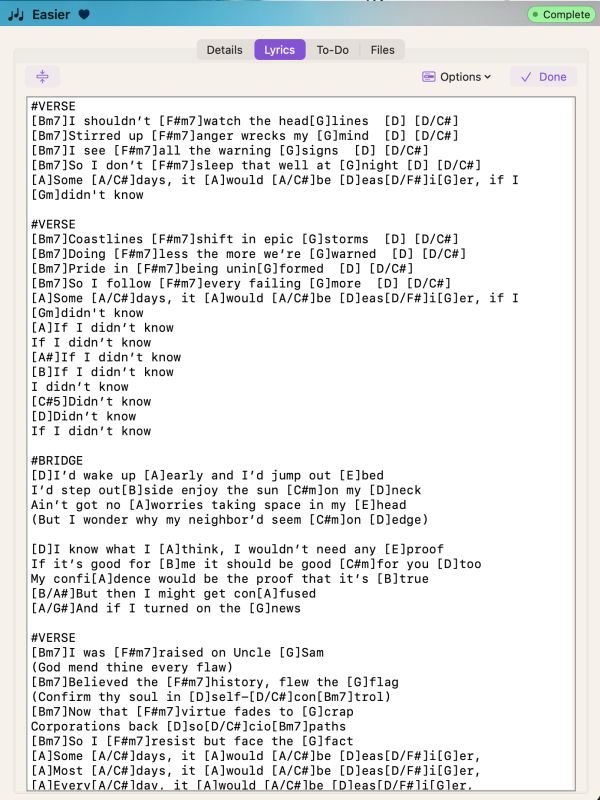
Enter the chords inline where the changes happen. Even in the middle of words
Viewing Lyrics
Editing Lyrics
Editing Lyrics
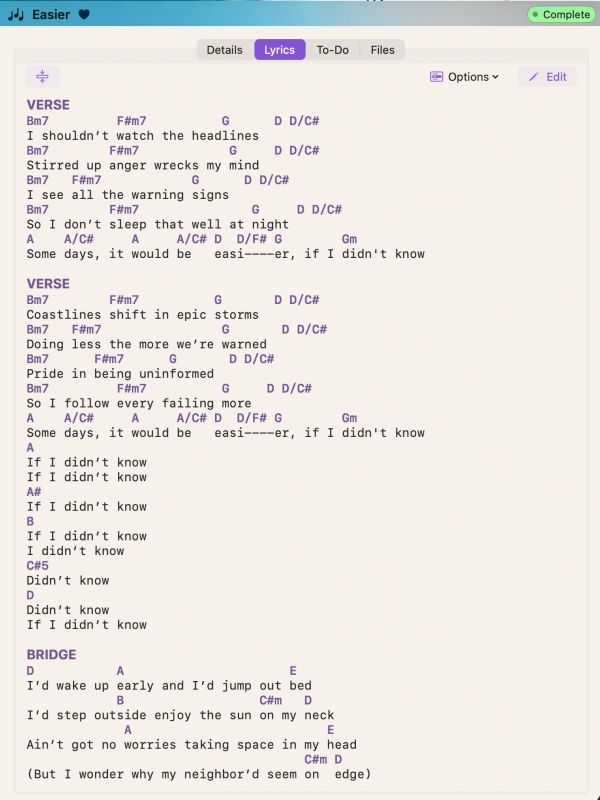
The StudioNotes lyrics viewer will align those chord changes with the lyrics, even if it means extending the word to make sure it fits

🖥️ Full-Screen Lyrics Viewer
Turn your iPhone, iPad, or Mac into a performance-ready lyrics screen.
With one click, StudioNotes switches into a full-screen lyrics mode, showing your formatted lyrics (and optionally chords) on a clean black background. It’s designed to be readable, distraction-free, and useful on stage, in rehearsal, or in the studio.
🎤 Great for Performance
- Show or hide chords as needed
- Increase or decrease font size for any viewing distance
- Smooth vertical scrolling for long songs
- Works beautifully on iPhones, iPads, Mac laptops, or an external display
StudioNotes also supports many Bluetooth footswitches, so you can scroll the lyrics hands-free while performing — no stopping, tapping, or looking away from your instrument.
While StudioNotes should work with any Bluetooth page turning pedals that can send page up/page down messages, we have verified it with several, including the Coda Music Technologies Stomp and Stomp Mini pedals which work great.
🎚️ Great for the Studio
The full-screen viewer is also perfect for recording sessions.
Display lyrics on a large screen so vocalists can see everything clearly, stay in the moment, and never worry about losing their place.
It keeps the workflow calm, focused, and professional.
🎯 Designed for Musicians
Whether you’re rehearsing with a band, performing live, leading a session, or cutting vocals in the studio, the full-screen Lyrics Viewer turns StudioNotes into a powerful, practical music tool you can rely on.