Custom Identifiers, Links & Badges
Make StudioNotes match your real-world workflow
StudioNotes includes built-in identifiers like ISRCs, ISWCs, PRO registrations, and streaming links — but every music career is different. That’s why you can create your own Identifiers and Link Types for the organizations, platforms, and processes you actually use.
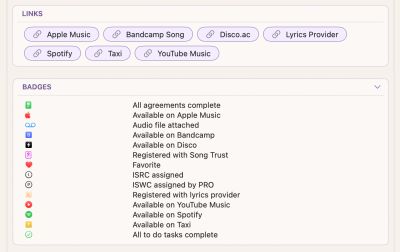
These custom types also appear as badges throughout the app, letting you see at a glance what’s been registered, linked, or completed.
What Are Identifiers?
An Identifier is any registration number or code associated with a song, recording, release, or contact.
Examples:
- ISWC
- PRO registration number
- ISRC
- SoundExchange ID
- PPL ID
- Label catalog number
- Distributor reference
StudioNotes includes many of these by default — and some are included but disabled until you need them.
What Are Links?
A Link is any URL you want to store with a song, recording, release, or contact.
Examples:
- Spotify
- Apple Music
- Bandcamp
- SoundCloud
- Disco.ac
- Google Docs
- Publisher or distributor portals
StudioNotes supports two kinds of links:
- Play Links → pages where audio can be played (SoundCloud, Disco, Spotify, etc.)
- Web Links → standard web pages (lyrics docs, contracts, portals, notes, etc.)
Adding a New Identifier or Link Type
- Open Settings
- Choose Identifiers or Link Types
- Click New Identifier or New Link Type
You’ll see these fields:
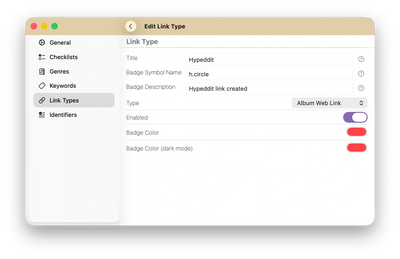
Title
The name of the Identifier or Link Type
Examples:
- “MLC Work ID”
- “PPL Recording ID”
- “Sync Library Link”
This is what you’ll see everywhere in the app when you are entering or viewing the identifier or link
Badge Symbol Name
This controls the icon used for the badge.
StudioNotes uses Apple’s built-in SF Symbols library.
You can browse symbols using:
- Apple’s free SF Symbols app (Mac)
- or any SF Symbols browser app on iOS. Just search for "SF Symbols" in the App Store to see a list of apps that let you browse the full catalog.
Examples:
- doc.text
- checkmark.seal
- music.note.list
- link
Paste the symbol name here.
(You can leave this blank if you don’t want a custom icon. The only difference will be that you don't see a badge when you set the identifier or link)
Tip: One common set of symbol names to use is the starting letter of whatever you're adding and then you can add ".circle", ".square", ".circle.fill" or ".square.fill" to create some quick and easy badges. For example, my default for Bandcamp is "b.square.fill". Setting a color on it (below) is an easy way to get started.
Badge Description
This is the text shown when the badge appears.
For example:
- “MLC Work ID Set”
- “ISRC Assigned”
- “SoundCloud Link Added”
This reads more naturally than just repeating the title.
Type
Choose what kind of item this applies to:
- Song
- Recording
- Release
- Contact
For Link Types, you’ll also choose:
- Play Link (audio pages)
- Web Link (regular websites)
Enabled
Turn this on or off.
- If enabled, you’ll see entry fields and badges for this type
- If disabled, the type disappears from the UI
Disabling does not remove any data — it just hides it.
Badge Color & Dark Mode Color
Pick a color for the badge in:
- Light mode
- Dark mode
You can click the color picker to choose anything you like. This makes it easy to visually distinguish two entries that may have similar icons. The regular and dark mode choices are there because the background of the list will either be white or black depending on whether your device is in light mode or dark mode. If you choose a black color for your badge, it would seem to disappear when you are in dark mode so in that case, set the dark mode color to a very light color (like white) and it will show up nicely then too.
Deleting Types
If you delete a Link Type or Identifier, all data associated with it is deleted as well.
StudioNotes always asks for confirmation before doing this, to prevent accidental data loss.
If you simply want to stop using a type, it’s safe to disable it instead.
Why This Matters
Music careers cross:
- countries
- distributors
- labels
- royalty organizations
- sync libraries
StudioNotes doesn’t try to guess your world — it gives you the tools to define it.
By creating your own identifiers and link types, you turn StudioNotes into a living, visual map of where every song and recording stands in the real world.
Pre-Defined (but Optional) Types
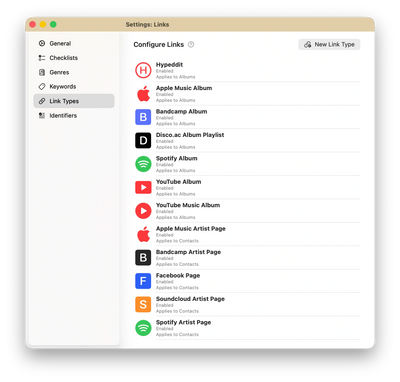
StudioNotes comes with a number of pre-defined Identifiers and Link Types for popular music services and platforms — even if you don’t use them yet.
Some examples include:
- Taxi
- SoundCloud
- Bandcamp
- Session Studio
Many of these are disabled by default, since not everyone uses every service. You can open Settings → Identifiers or Settings → Link Types to see what’s already there.
If you find one you need, simply enable it — no setup required.
If you don’t see what you’re looking for, these built-in types also make great examples of how to create your own: you can see how the Title, Badge, Type, and Colors were configured and use them as a starting point for your own custom entries.
Built for Real-World Music Careers
No two music careers look the same. Some artists release everything themselves, some work with publishers and labels, some focus on sync, some tour, and some do all of the above. Over time, the services you use, the organizations you register with, and the way you track your work will change.
StudioNotes is designed to grow with you.
By letting you define your own identifiers, links, and badges, StudioNotes becomes more than just a database — it becomes a living map of your creative and business world. Whether you’re tracking a single demo or a catalog of released recordings across multiple platforms, everything stays organized, visible, and in your control.
And as your music career evolves, StudioNotes evolves with it.