
A Simple Workspace for Complex Creative Projects
How StudioNotes Works
StudioNotes is designed to help you organize the information behind your music — without getting in the way of the creative process. Everything is built around a few core record types and flexible ways to organize them.
The Sidebar

The sidebar is your home base. It gives you quick access to the main organizational areas of StudioNotes:
- Songs
- Recordings
- Contacts
- To-Dos
- Releases
- Collections
You can also create new Collections and Releases directly from the sidebar and drag songs or recordings into them but more on those later.
Lists & Detail Views
Each section uses a familiar pattern:
- A list view to browse and filter items
- A detail view to see everything related to a specific song, recording, release, or contact
Each list row includes overview information for the item like its name, when it was started, its current state and things like that. They also include badge icons help you quickly see what’s been added -- like registrations, links, or agreement status -- without opening each item.
Adding new items is as simple as clicking the + icon in the list for the type of item you're looking at in the list. (The one exception is To-Do items which you can add on the To-Dos tab for any item)

A list of recordings and the details page
Editing in StudioNotes
StudioNotes is designed so you can edit information in the way that feels most natural for the task at hand -- whether you’re setting something up for the first time or making a quick update.
Create New Items
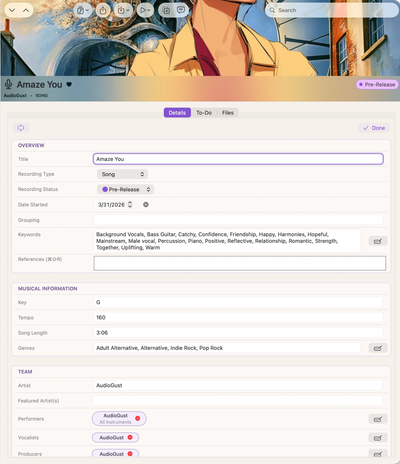
When you create a new song, recording, release, or contact, StudioNotes opens a full Edit view where you can enter all of the details in one place. This “big edit” layout is ideal for capturing everything at once when you’re starting a new project. You can save your changes or cancel if you decide not to create the item.
Edit What You’re Looking At
For everyday updates, you can edit information directly from the tab you’re viewing. Each tab, such as Details or Lyrics, has its own focused edit view, so you can quickly update just that section and tap Done when you’re finished.
Quick Edits for Small Details
Some information is designed to be edited without entering a full edit mode at all. You can add to-dos by typing and pressing Return, or add contributors by choosing from a contact picker. Similarly, keywords and genres can be added with their own pickers or typed in as text. For things like priorities, split percentages, roles, or notes, tap the ⓘ button to open a small edit popover -- similar to how editing works in Apple’s Reminders app.
Designed to Stay Out of the Way
Whether you’re entering a lot of information or making a small adjustment, StudioNotes keeps editing simple and focused, so you can capture details as they come up without interrupting your creative flow.
Songs
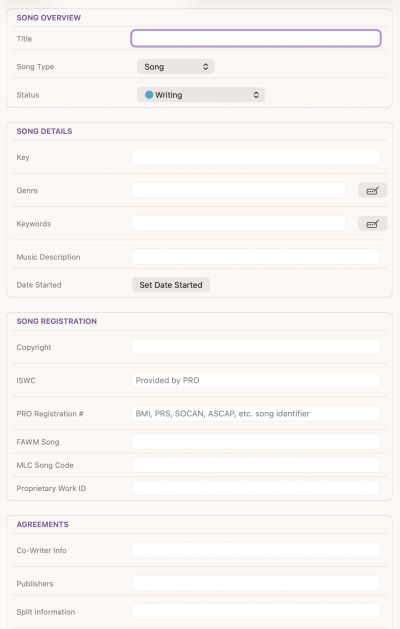
Songs are where ideas begin
Each song can include:
- Title, song type, status
- BPM, key, and start date
- Lyrics and chord progressions
- Co-writers, publishers, and split percentages
- Status and notes about split agreements
- Registrations such as copyright, ISWC, and PRO info
- Files like signed songwriter split agreements, demo recordings or even voice memos of melody ideas
- Reference tracks and notes about feedback, history, or pitches
- A cover image
You can organize songs by status, type, or date to match your writing process.
You don't need to enter everything for every song. All of the fields for songs (and for the other types as well) are all things we've needed as we've been managing our own songs and recordings so if you do find you need something, there's a good chance that there's a place for it in StudioNotes. And if you can't find it, let us know and we'll see when your suggestion might show up in a future release of StudioNotes.
If you're curious about why we keep these separate, check out the Songs vs Recordings page
Recordings
Recordings capture how a song comes to life.
When you make an actual recording of a song, you create a recording entry. A song can have multiple recordings of it. For example, the original version, an instrumental version, an acoustic version, etc. If you would need another ISRC number for it, you would want to create another recording. It is easy to duplicate an existing recording which will copy all of the existing values since a lot of them may be the same.
For each recording, you can track:
- Title, recording type, status
- Organizational details like key, tempo, length, genres, keywords and reference tracks
- Contributors such as artists, performers, producers, and engineers
- Master rights owners and split percentages
- ISRCs and other performance registrations
- Files like mixes, masters, signed master split agreements and performer agreements
- Session notes, submission history, and promotional notes
- Status and notes about master split agreements, performer and other rights agreements
- Links to streaming services and sharing sites like SoundCloud, Disco, etc
Recordings can be associated with a song or stand on their own.
If you're curious about why we keep these separate, check out the Songs vs Recordings page
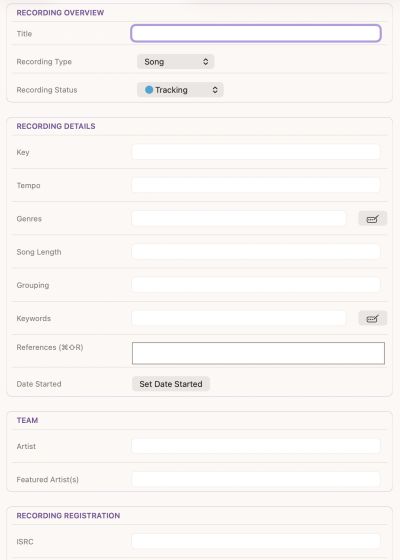
The "big" edit page for a recording
Releases
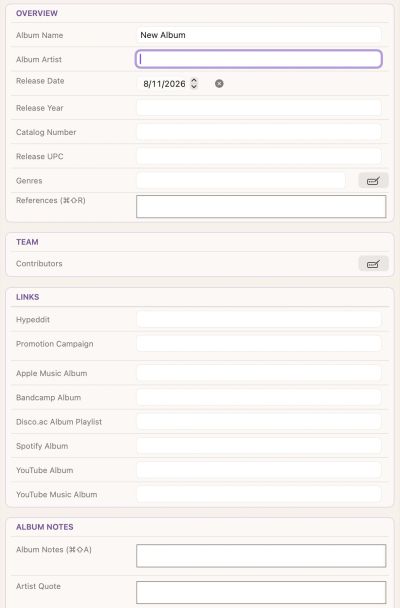
Releases group recordings into finished projects like singles, EPs, and albums.
When it's finally time for the recording of the song to be shared with the world and your fans, you can create a release to hold all the information about that release. A recording can actually be in multiple releases -- perhaps it is released as a single, then on an album and later on your greatest hits album.
Each release can include:
- An ordered track list of recordings
- Artwork, release date, and genres
- Artist name and release notes
- UPC and release year
- Streaming and store links
- Files related to the release like cover art, videos and promotional images
Releases give you a clear view of what’s going out into the world and when.
Contacts
Contacts help you keep track of the people you work with.
We all have existing contacts lists on our Mac and iOS devices and StudioNotes does not try to replace those apps. But there is a lot of information that is specific to the people you create with that doesn't have a place in those apps.
Each contact can store:
- Basic contact details (so you don't have to go to the Contacts app to get their email address)
- Artist names and social links
- PRO, IPI, IPN, and ISNI identifiers
- Files like agreements, photographs and voice memos of conversations
- Publisher information and notes
As you work with people, you can easily add them to that song or recording based on what their contribution was. The Contributions tab for each contact shows every song and recording a contact has worked on and similarly you can jump to the contact from any recoding or song just by clicking on their contribution item.
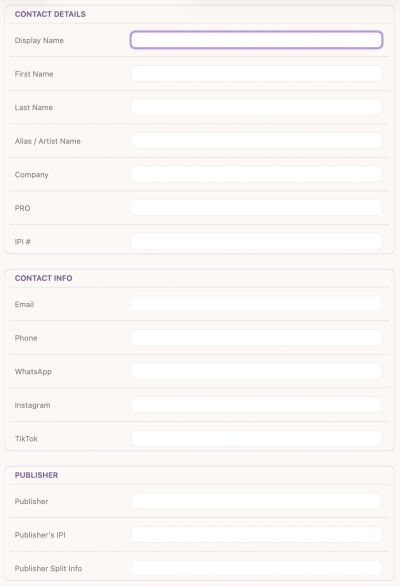
The "big" edit page for a contact
Collections

Collections let you group songs and recordings however you like
They’re perfect for creating a group of songs or recordings so you can do something with them later like:
- Organizing songs or recordings for albums or EPs in progress
- Writing camps and co-writing groups
- Live sets or rehearsal prep
- Sync or pitch folders
Collections are flexible -- just drag items in and organize your work your way. You can add any combination of songs, recordings, and releases to collections
To-Dos and Checklists
Add To-Dos to songs, recordings, releases, or contacts
For each to-do can:
- Assign priorities
- Mark tasks complete
- Associate tasks with specific collaborators
- Decide whether it should show up in the global To-Do list, or just in the list for that item
As a big time saver, you can save groups of To-Dos as Checklists and reuse them for releases, registrations, or session prep. This is a great way of making it easy to follow the same steps as you finish a collaboration, finish a mix, or get ready for release day.

The Checklists editor in the Settings window
Customizing StudioNotes to Fit You

Links & Identifiers
For each of the main types, StudioNotes provides ways to store the identifiers (like ISWCs, ISRCs, UPC codes, etc) that are commonly needed. Similarly, there are lot of URLs that you need to keep track of like the Google Docs page you used to collaborate on lyrics or the link to the recording on Disco, Spotify and Apple Music, or your album link on SoundCloud. But each country has a different set of services that you may need to register with and we all have our favorite services we use to share our recordings and releases so we added a way to extend both identifiers and links so you can customize StudioNotes to work they way you need it to. Each one of those links and identifiers can also have a badge that you define for it so you can see at a glance in your lists if you've already added it.
StudioNotes lets you track the registrations and links that matter most to you.
You can:
- Add your own link types
- Track different registration or identifier types
- See at a glance what’s been added using badge icons
This makes it easy to spot what’s missing before a release or pitch.
If you're curious about why these are important, check out Songs vs Recordings.
If you want to know how to create your own Identifiers and Link types, check out Links and Identifiers.
Keywords and Genres
Customize the keywords and genres that best fit your workflow
Customize the keyword and genre lists you use across songs, recordings, and releases.
Whether you’re tracking styles, moods, collaborators, or use-cases, StudioNotes adapts to your workflow — and now lets you filter your catalog using those tags.
Combine multiple genres and keywords, or even exclude terms, to quickly find the songs and recordings that match what you’re looking for.

Keyword and genre filtering in StudioNotes 2.0